When you add a relation field in an entity and make this visible in the Entity details component on the Detail page you can see a default search, which is just a list of entities with a search field. But what if you want to enhance this search with facets e.g.? This blogpost will show you how to do this.
In my example we have configured an entity “Person” which has a relation to M.Asset. We want to tag all persons which appear on a photo for example. The relation is defined as ManyToMany-relation.
First we have a look into the Entity details component on the Asset Details page where we enable the relation field (“Persons”).

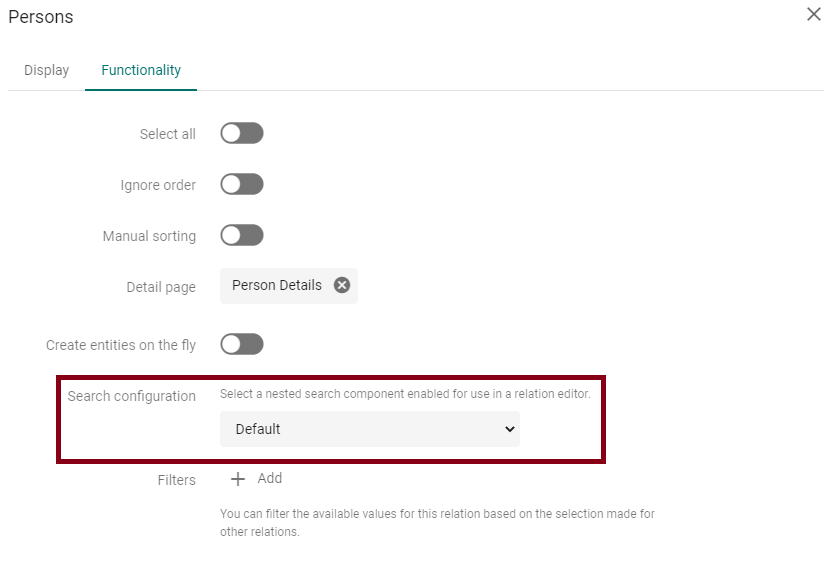
Click on the wheel next to your relation field to open the details in a popup. If you go to the tab “Functionality” you can see the node “Search configuration”. It gives you the following hint: “Select a nested search component enabled for use in a relation editor”. And this is what we do.
We add a new search component on the page and set it to “Nested”, which looks like the following.
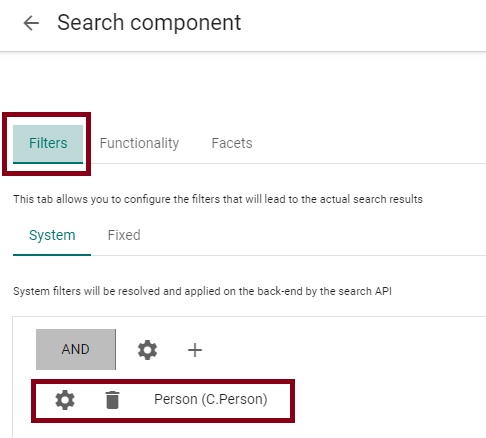
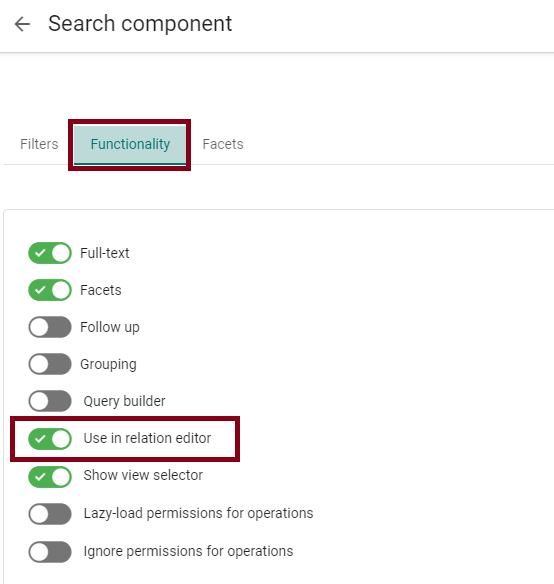

In Filters you choose your related entity, in my case it is “Person”. In tab Functionality it is most important to enable “Use in relation editor”. I also enabled Full-text and Facets. That’s why the third tab Facets appears. Here you can add any facet you want. I added just the “Person type”. (taxonomy field on entity Person). Now you have configured the search to use, save and close and go back to the Entity details component with the relation field display.
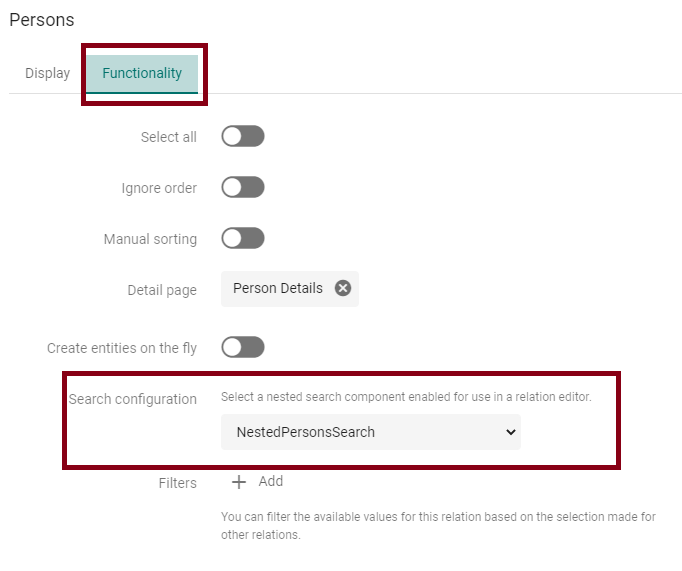
Now open an asset detail page and check it. Navigate to your relation field and click on the “+” to add a related entity. The popup opens like the following.
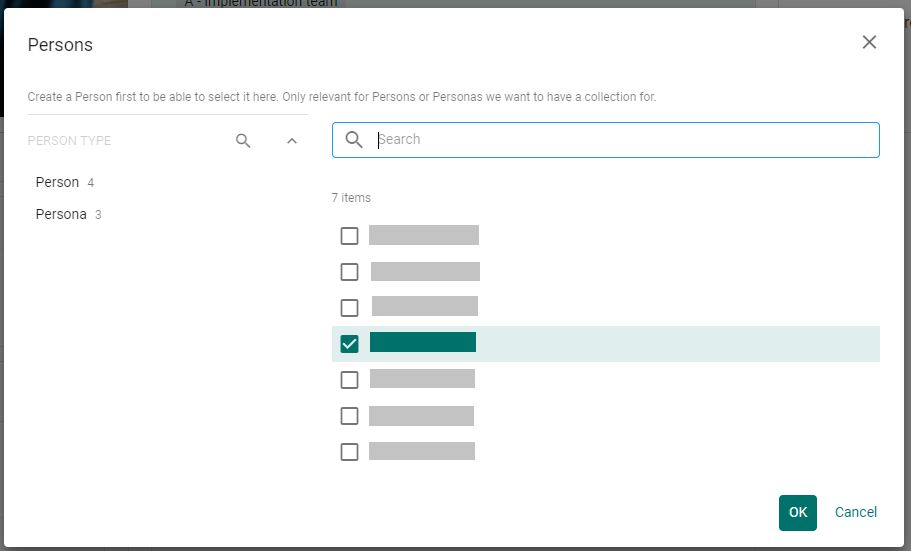
And that’s it. You just need to add a nested search component which is enabled to be used in relation editor – easy!
 Anna's blog