After we added the two custom experience buttons to our renderings, we came up with the idea, to offer the editors the possibility to even edit all fields of the context item – sometimes not shown in HTML directly such as meta title, meta description and so on – without switching back to the Content Editor. Therefore we implemented the “Edit context item” button I will describe in the following.
For creating such a button we first do the coding part. In our implementation of the Edit Fields button we already added the functionality to get all fields for an item. (In that case our datasource items)
Now we add a request which gets the fields and resolves the editor url for us.
namespace Foundation.ExperienceEditor.Requests
{
    using System.Collections.Generic;
    using Foundation.ExperienceEditor.Extensions;
    using Sitecore.Data;
    using Sitecore.ExperienceEditor.Speak.Server.Contexts;
    using Sitecore.ExperienceEditor.Speak.Server.Requests;
    using Sitecore.ExperienceEditor.Speak.Server.Responses;
    using Sitecore.Shell.Applications.ContentEditor;

/// <remarks>
/// How to: http://reyrahadian.com/2015/04/15/sitecore-8-adding-edit-meta-data-button-in-experience-editor/
/// </remarks>
public class GenerateFieldEditorUrl : PipelineProcessorRequest<ItemContext>
{
 public override PipelineProcessorResponseValue ProcessRequest()
        {
            return new PipelineProcessorResponseValue
            {
                Value = this.GenerateUrl()
            };
        }

 public string GenerateUrl()
 {
   List<FieldDescriptor> fieldList =   RequestContext.Item.CreateFieldDescriptors();

  FieldEditorOptions fieldeditorOption = new FieldEditorOptions(fieldList)
  {
     PreserveSections = true,
     //Save item when ok button is pressed
     SaveItem = true
   };

   return fieldeditorOption.ToUrlString().ToString();
  }

  #endregion
 }
}
The second step is adding the request in the config like this:
<configuration xmlns:patch="http://www.sitecore.net/xmlconfig/">
<sitecore>
<sitecore.experienceeditor.speak.requests>
 <request name="ExperienceEditor.GenerateFieldEditorUrl" type="Foundation.ExperienceEditor.Requests.GenerateFieldEditorUrl, Foundation.ExperienceEditor" />
 </sitecore.experienceeditor.speak.requests>
</sitecore>
</configuration>
The third step is the Javascript part. Therefore we add the following script /Scripts/ExperienceEditor/Commands/editContextItem.js :
define(["sitecore", "/-/speak/v1/ExperienceEditor/ExperienceEditor.js"], function (Sitecore, ExperienceEditor)
{
Sitecore.Commands.editContextItem =
{
 canExecute: function (context)
 {
  if (!ExperienceEditor.isInMode("edit") ||
      context.currentContext.isFallback ||
      !context.currentContext.canReadLanguage ||
      !context.currentContext.canWriteLanguage)
   {
     return false;
   }

   return true;
  },
  execute: function (context)
  {
              ExperienceEditor.PipelinesUtil.generateRequestProcessor(
"ExperienceEditor.GenerateFieldEditorUrl", function (response)
{
  var DialogUrl = response.responseValue.value;
  var dialogFeatures = "dialogHeight: 520px; dialogWidth: 680px;
     header:Edit context item fields; ";
  ExperienceEditor.Dialogs.showModalDialog(DialogUrl, "",
    dialogFeatures, null);
}).execute(context);
}
};
});
As you can see in the execute method we call our defined request “ExperienceEditor.GenerateFieldEditorUrl”.
The last step is our core DB item. Therefore we navigate to /sitecore/content/Applications/WebEdit/Ribbons/WebEdit/Page Editor/Edit and duplicate for example the “Insert” item and name it “Edit Context Item”.
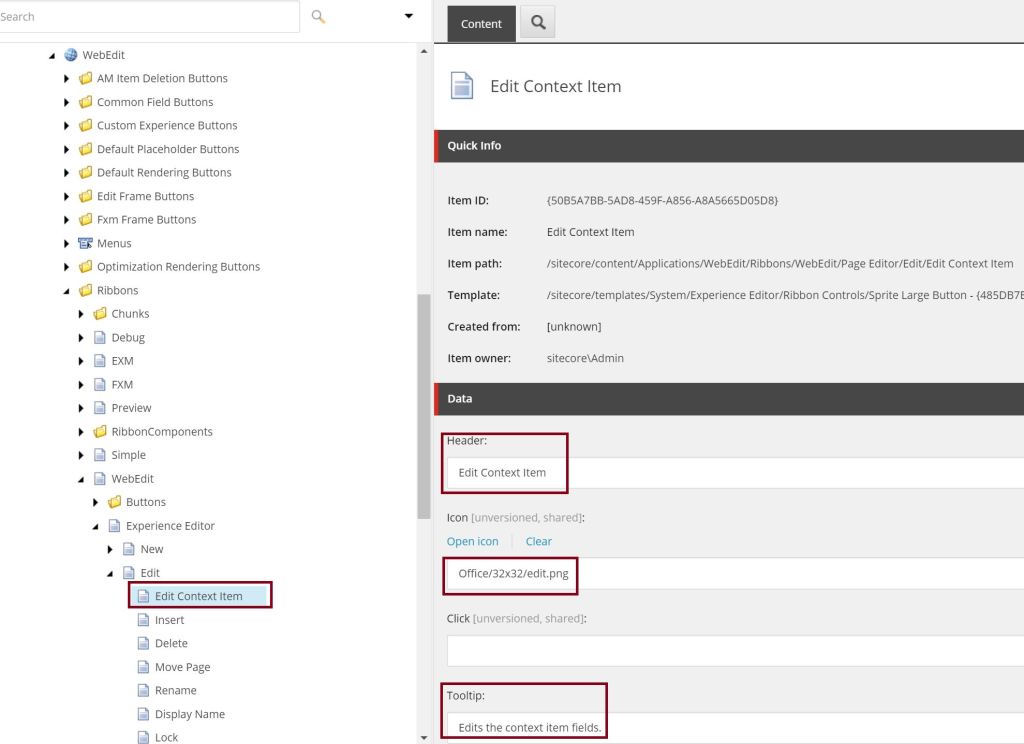
We fill out the fields and open the Presentation Details. First we remove the “Pipelines” control.
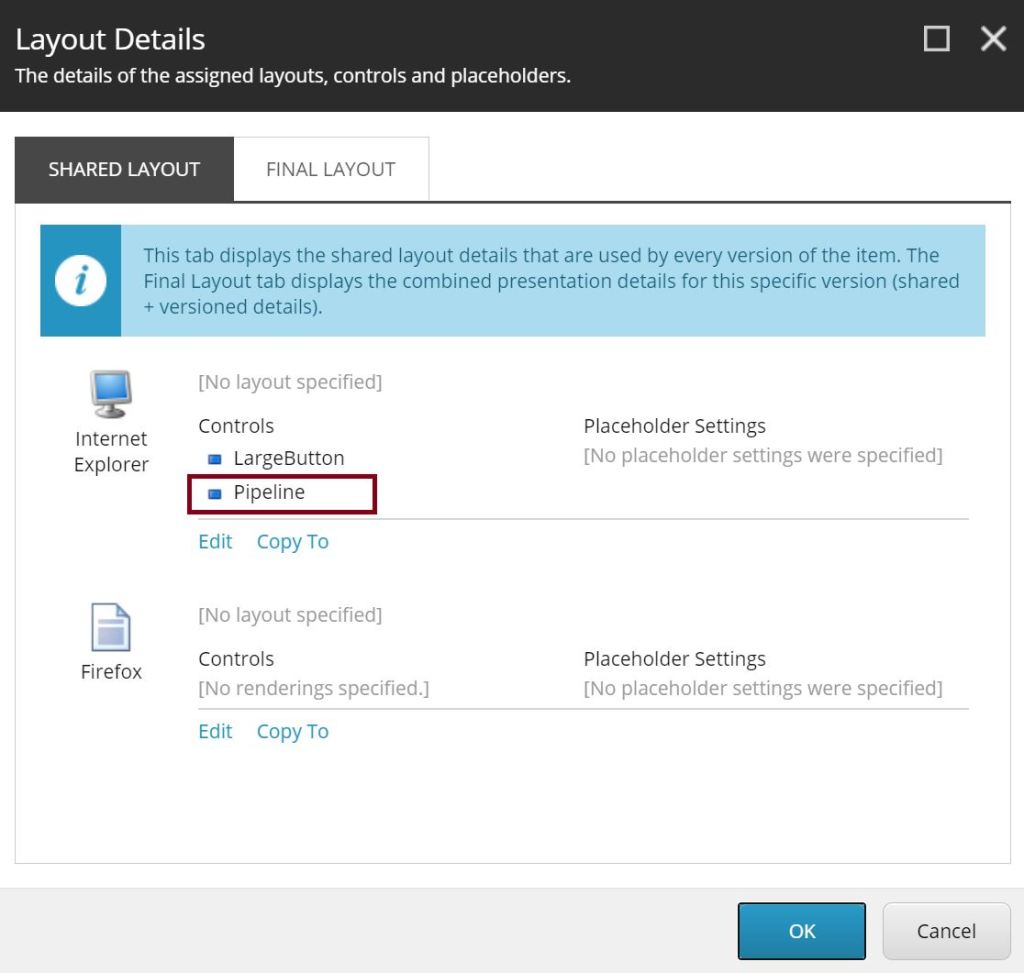
And last we edit the “LargeButton” Control like the following:
Click: trigger:button:click
Command: editContextItem
Id: EditItemLargeButton
PageCodeScriptFileName: /Scripts/ExperienceEditor/Commands/editContextItem.js
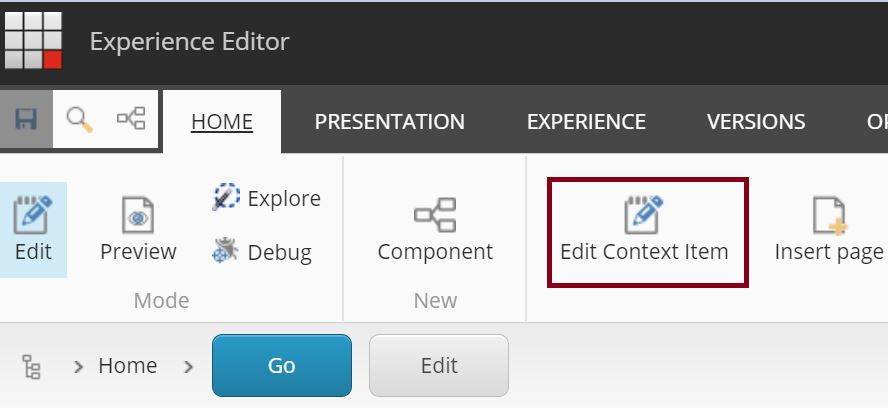
Now, when we open the Experience Editor we can see our new button and edit all fields for the context item.
If you want to implement it, you can find the code and packages on github.
 Anna's blog