I already wrote about changing the SSL certificate in an on-premise environment – today I want to talk about one way to do it in an Azure environment.
First: Upload the .pfx file in your app services.
For this you navigate to your app service, then to “TLS/SSL settings” and uplad your .pfx-file in the Private key certificates tab.

Do this for all your app services.
Second: Uplad the .cer file in your application gateway.
Navigate to your Application Gateway and into the section “HTTP Settings” and choose the HTTPS Setting you want to change.
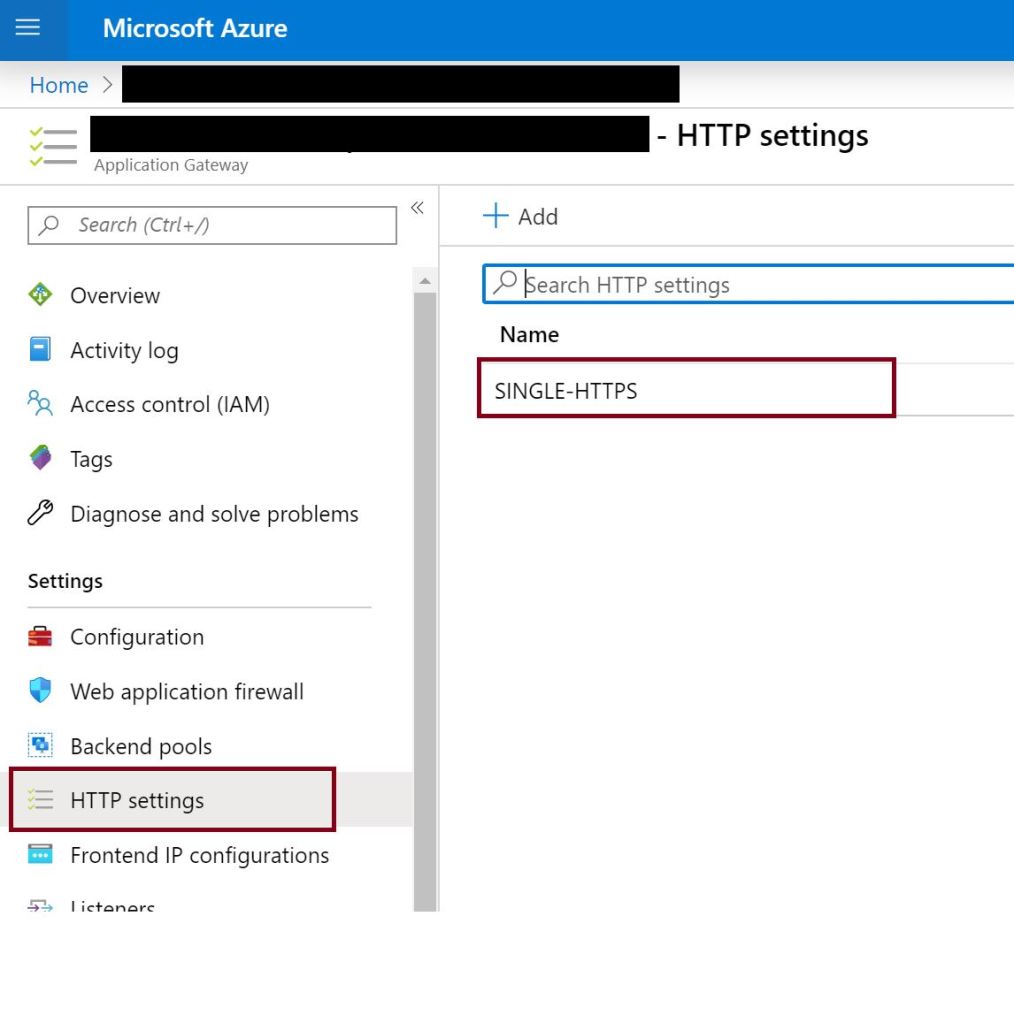
Then create the new certificate.

Now you have to wait, until the Application Gateway is updated, because otherwise you are not able to take the last steps. If you try it, there will be an error, that the certificate could not be updated.
Here is the error described:
https://stackoverflow.com/questions/42499353/ssl-cert-error-in-azure-application-gateway
Third: Navigate into the section “Listeners” and choose the first https-listener.

Create the new certificate or renew the current one and upload your .pfx file.
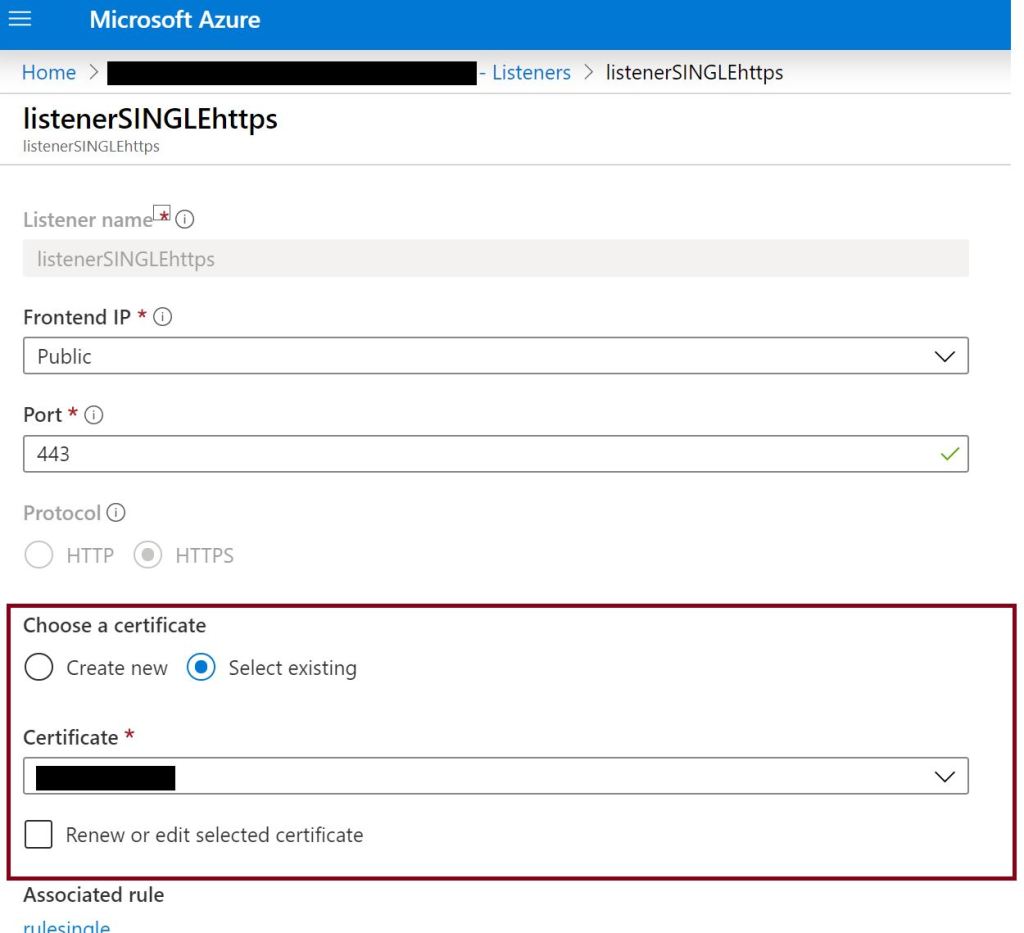
You only have to upload the file for the first listener. Now you navigation to the other https listeners and choose your new certificate.
And that’s all 🙂
 Anna's blog